The video tutorials below are organized and displayed by the date created. If you prefer to see them displayed by category, please visit my blog.
In this Quick Tip Julieanne demonstrates three different ways to display an image within a shape in Photoshop including vector masks, clipping masks and layer groups.
In this episode of The Complete Picture Julieanne demonstrates how nesting Smart Objects enables each filter applied to have it’s own unique Smart Filter (layer) masks.
In this episode of The Complete Picture Julieanne demonstrates how to use Hue, Saturation, Luminance and the Adjustment Brush to selectively control color in Lightroom. Note: although this video was recorded in Lightroom, the same techniques are available in Adobe Camera Raw in Photoshop CS6.
Layer Groups — they’re not just for organizing your layers! In this episode of The Complete Picture Julieanne demonstrates 5 ways to use Layer Groups to create special effects in Photoshop.
In this episode of The Complete Picture Julieanne explains how Lightroom determines the file size and resolution of a file when using the Edit in Photoshop command.
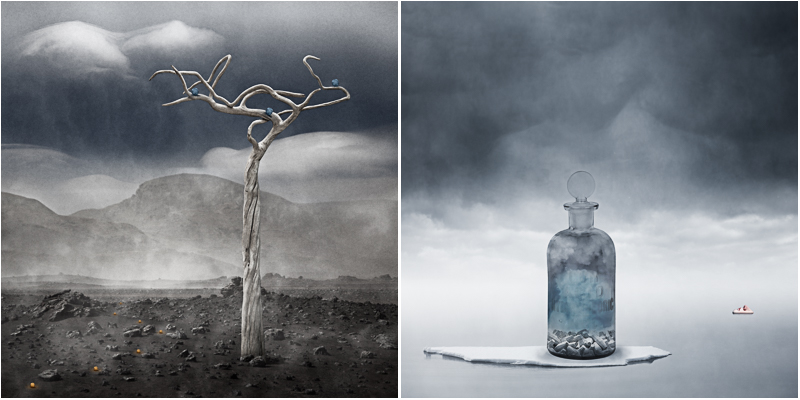
In this episode of The Complete Picture Julieanne reveals her Lightroom-to-Photoshop workflow used to create the still life “Cyclical”.
In this episode of The Complete Picture Julieanne explains the difference between duplicating a Smart Object using the Layers panel to create multiple instances of a layer, and creating a copy of a Smart Object using the application menu for independent editing.
In this Quick Tip Julieanne reveals a simple technique to paste content directly into a layer mask in Photoshop CS6.
Learn Julieanne’s top 5 favorite features in Photoshop 13.1 including refinements to the Crop Tool, nondestructive editing with Blur Gallery and Liquify, increased efficiency with Conditional Actions, practical default Type Styles and support for Retina displays on Macintosh.
In this episode of The Complete Picture Julieanne shows you the difference between opening a raw file as a pixel-based layer versus a Smart Object, and the advantages of both approaches.
Did you know that you can not only reposition but also transform images over time? In this episode of The Complete Picture Julieanne demonstrates how easy it is using the power of Smart Objects in Photoshop CS6.
In this Quick Tip Julieanne reveals a technique to create a mask using the reflected gradient which can quickly be repositioned over time without retouching.
In this episode of The Complete Picture Julieanne demonstrates how to mask a video clip in Photoshop CS6 to reveal motion in a selective region of the clip over time.
In this episode of The Complete Picture Julieanne demonstrates two methods for one of the most common troubleshooting techniques: resetting the Photoshop Preferences.
In this episode of The Complete Picture Julieanne explains the best way to add a color tone to an image using the Split Tone and Tone Curve panels and shows how to save presets to increase your productivity. Click here to download the presets discussed in the video. Note: although this video was recorded in Lightroom, the same techniques are available in Adobe Camera Raw in Photoshop CS6.
In this episode of The Complete Picture Julieanne demonstrates the best way to convert images to Black and White as well as how to save presets to increase your productivity. Click here to download the presets discussed in the video. Note: although this video was recorded in Lightroom, the same techniques are available in Adobe Camera Raw in Photoshop CS6.
In this episode of The Complete Picture discover the power of making selective adjustments like dodging and burning, color corrections and noise removal using the Graduated Filter and Adjustment Brush in Lightroom 4. Note: although this video was recorded in Lightroom, the same techniques are available in Adobe Camera Raw in Photoshop CS6.
Even with the fantastic new Blur Gallery in Photoshop CS6, the Lens Blur filter is an essential tool when a high degree of control is needed to selectively (and realistically) blur an image. In this video tutorial, Julieanne uses the Lens Blur filter with a depth map to to create a series of images that appear as if they were captured with a tilt-shift lens. Julieanne also demonstrates how to quickly apply this filter to multiple images using actions and batch processing.
In this Quick Tip Julieanne demonstrates the new Oil Paint filter in Photoshop CS6 to quickly create a painterly image which can stand on it’s own or be used as an under painting for more elaborate artwork.
In this video tutorial Julieanne walks you through the best way to pan and zoom a "time lapse" image sequence, video clip and still photograph using the new Motion options in Photoshop CS6. For those wanting even greater control, Julieanne also demonstrates how to use smart objects to take advantage of Photoshop CS6’s new Transform attribute in the Timeline panel.
In this Quick Tip Julieanne demonstrates the new Color Lookup Adjustment Layer and walks you through how to download a template to quickly apply these new "looks" to your images.
The Gradient Map Adjustment Layer has over 35 new presets to emulate traditional darkroom techniques for toning and split-toning photographs. Learn how to load and apply gradient maps to a single image as well as how to download and use Julieanne’s template to quickly see what each preset would look like on your own photograph through the magic of Smart Objects.
In this Quick Tip Julieanne demonstrates how to quickly crop two images to the same size using the Front Image option as your source.
There are several advantages to the newly redesigned Crop tool in Photoshop CS6. In this video tutorial Julieanne demonstrates the refined interface, new features, customizable presets, enhanced tools and essential shortcuts that will make cropping easier than ever.
In this episode join Julieanne as she shows off some of the new features of Adobe Photoshop CS6 Extended, part of the new Adobe Creative Cloud. See the blazingly fast performance of the new Mercury Graphics Engine. Learn about the new improved processing and enhanced controls in Adobe Camera Raw 7, the new photographic blur effects, how to straighten objects using the new Adaptive Wide Angle, and more. Explore many of the timesaving and user-inspired enhancements including new type styles, re-engineered Shape layers, and the all-new Crop tool.
Learn how to create the highest quality photographs by taking advantage of new and improved global and local adjustments in Adobe Camera Raw. Julieanne demonstrates the best way to recover detail in shadow and highlight areas, make sophisticated tone curve adjustments on a per channel basis, apply chromatic aberration on the fly, and selectively paint color, tonal and noise reduction adjustments.
Learn time-saving techniques to boost your productivity as Julieanne reveals essential enhancements that will improve the way you work with Layers, Groups, the Properties panel, and much more!
Discover how to create photographic blur effects in a few clicks using intuitive, on-canvas controls in Photoshop CS6. Julieanne shows you how to soften select areas with Tilt-Shift blur, uniformly blur your entire image and then sharpen a single focal point with Iris blur, or select multiple focal points and then let Field blur vary the blurriness between them.
Take a tour of the new features and improved vector workflow in Photoshop CS6. Julieanne demonstrates how to quickly add custom strokes and fills to Shape layers, combine shapes without rasterizing layers, and use new alignment options and Pixel Grid for better rendering.
Increase your productivity when working with type by creating Paragraph and Character styles in Photoshop CS6. With these styles, you can apply formatting to selected characters, lines, or paragraphs with a single click.
Learn how Photoshop CS6 can help you to explore new mediums with intuitive video creation. Julieanne walks through how to automatically sequence clips, use live previews for trimming, combine multiple audio tracks, drag and drop transitions, apply pan and zoom effects, and output videos using presets for popular devices.
Take a quick look at Julieanne’s favorite 6 features in Photoshop CS6 Beta, including improved processing in Adobe Camera Raw, the intuitive new Blur Gallery, time-saving type styles, re-engineered Shape layers, powerful video editing tools, and the redesigned Crop tool, and auto-select interpolation.
Part 2 of the "Moments Alone" series featuring a collection of mobile pictures taken by Julieanne during her travels.
In this episode of The Complete Picture Julieanne demonstrates the power of the Art History brush in Photoshop CS5 and its ability to continuously sample from any history state or snapshot. She will show you how to create compelling, painterly images by making simple changes to the default settings and utilizing a variety of different brush tips and presets.
In this episode of The Complete Picture Julieanne reveals there is far more to the History Panel than simply un-doing mistakes. Learn as she reveals little-known shortcuts for working with the History Panel, including how to fill with the History Brush, as well as a fluid method for painting between snapshots with no layer or masking knowledge required!
In this quick tip Julieanne shows an easy work-around for stitching large, resource-intensive panoramas that can’t be created in one step using PhotoMerge.
In this episode of The Complete Picture Julieanne helps you avoid unwanted or puzzling results by answering the three most frequently asked questions around opening and round-tripping files from Lightroom to Photoshop.
In this quick tip Julieanne reveals an automated feature for adding arrowheads to the beginning or end of lines in Photoshop.
In this episode of The Complete Picture Julieanne demonstrates how to eliminate repetitive tasks and increase efficiencies in Photoshop by customizing the tools you use the most and saving them as Presets.
In this quick tip Julieanne demonstrates the most flexible way to create a transparent circle around an object.
In this episode of The Complete Picture Julieanne demonstrates the incredible power of Variables in Photoshop. Learn how to cut hours of time out of your production time when you need to combine text and photographs. Although this feature has been in Photoshop for many releases, only a small number of customers know of its immense power for tasks such as automating event photography, creating web banners and graphics.
In this episode of The Complete Picture Julieanne demonstrates how to reduce the color palette of an image to create a posterized effect with the most control and maximum flexibility possible.
In this episode of The Complete Picture Julieanne demonstrates how to create a single vector logo out of multiple type and shape layers, specify a consistent size, apply a style and save the entire creation as a Tool Preset! In addition, Julieanne shows how to add a scan of your signature to any photograph with a simple change of a layer blend mode.
In this episode of The Complete Picture Julieanne focuses on little known features and helpful hints for creating actions to successfully automate tasks in Photoshop.
In this episode of The Complete Picture Julieanne discusses how the addition of color as well as supporting imagery can help reinforce the mood and message of a composite image that a single photograph may fail to do on its own. Discover how to composite images through the use of masking, blend modes, smart objects, gradients and edge effects.
In this episode of The Complete Picture Julieanne reveals some basic compositing techniques in Photoshop CS5 that she used to illustrate the feeling and mood of Iceland. Discover how easy it is to combine multiple images together using layers, masking, blend modes, and transparency in Photoshop CS5.
In this episode of The Complete Picture Julieanne demonstrates how to use Lightroom 3's Develop Module to use color, tone, placement of content, and stylistic effects to give a series of images a unified look and feel. Learn how to use leading lines to tie images together as well as repeating shape, detail and balance to form a cohesive story. Note: although this was recorded in Lightroom, many of the techniques can be replicated in Adobe Camera Raw in Photoshop CS5.
In this episode of The Complete Picture Julieanne discusses how to select multiple images to work together as diptychs and triptychs. Learn how to select photographs with similar attributes such as color and shape, mood and lighting, line and form will help to unify two (or more) photographs, perhaps even creating new meaning though the relationship of the imagery.
This JavaScript (invertForeGroundClor.jsx) inverts the foreground color in Photoshop.
To install:
1. Download and unzip the file
2. Quit Photoshop
3. Place the script in your Photoshop CS3/Presets/Scripts folder
4. Launch Photoshop
5. Select a foreground color
6. Choose File > Script > invertForeGroundClor
Of course you can assign a keyboard shortcut to the script by selecting Edit > Keyboard Shortcuts, selecting Shortcuts For Application Menus and scrolling down to File... Scripts... InvertForeGroundClor
Somewhere between the decisive moment and moving pictures lies the world of digital compositing — where multiple images captured at different times layer together to create a whole that is greater than the sum of its parts. In this episode Julieanne will demonstrate how to transform concepts and ideas into images by mastering the tools used in compositing.
Discover the advantage of working with and archiving to the DNG raw file format over proprietary raw file formats as well as choose which tool to use to convert your files as you move through your workflow.
Join Julieanne as she covers all those little features in Adobe Photoshop CS5 that you may not know about that can make your life easier.
Join Julieanne as she explains a new feature found in Adobe Photoshop CS5 called Mini Bridge, which lets you access all your creative assets, sort and filter them and then drag them right into your document.
In this episode of The Complete Picture Julieanne covers the new Merge to HDR Pro and Tone Mapping Adjustment features in Adobe Photoshop CS5 which allow you to get a much higher dynamic range in your images.
In this episode of The Complete Picture Julieanne goes over all the new refinements and enhancements you'll find in the latest version of Adobe Camera Raw, including Noise Reduction and Image Sharpening.
In this episode of The Complete Picture Julieanne covers the Mixer Brush, one of the new painting features in Adobe Photoshop CS5.
In this episode of The Complete Picture Julieanne shows you some of the new painting features in Adobe Photoshop CS5 including the new Natural Media Bristle Tip Brushes.
In part 2 of this 2-part episode of The Complete Picture Julieanne continues to show you how to create a video file using an image sequence in Adobe Photoshop CS4 Extended. This episode focuses on adding effects and audio.
In this episode of The Complete Picture Julieanne shows you how to create a video file using an image sequence in Adobe Photoshop CS4 Extended.
In this episode of The Complete Picture Julieanne shows us how to get great results with the Lens Blur Filter in Adobe Photoshop CS4.
In this Adobe Photoshop CS4 tutorial Julieanne shows you how to open 3 images at once in Photoshop and then easily arrange them into a triptych.
Watch how Julieanne and Bert demonstrate a technique to guide the viewer's eye to a specific portion of an image using a Depth Map with the Lens Blur filter in Photoshop CS4.
Join Julieanne as she goes over the top 10 little-known features in Photoshop CS4 that can make a huge difference in the way you work.
Watch as Julieanne demonstrates how to create your own custom panels for use inside of Photoshop CS4 using the beta version of Adobe Configurator. See how easy it is to make your own panels — customizing which tools, menu items, graphics, scripts and videos you display. Then discover how to share the panels with friends and coworkers for fun or training. In addition, you can download Julieanne's custom panel to view a "Tip of the Day" directly from within Photoshop!
Find out how to quickly create PDF contact sheets or custom print and web layouts using Adobe Bridge CS4’s Output Workspace.
Download and double click the Daily_PS_Tip.mxp file in order to launch Adobe CS4 Extension manager. Follow the installation instructions. Quit Photoshop CS4 if it is running and re-launch it. Select Window > Extensions > Daily_PS_Tip to display the panel. In some cases, the panel may display the following message “Please close all panels or restart Photoshop to enable the security configuration for this panel.” If so, please close the panel, quit and restart Photoshop. Upon restart, select Window > Extensions > Daily_PS_Tip to display the panel. You will be able to see my Daily Photoshop Tip — brought to you directly from my blog. Note: since the panel is accessing my blog, you will need to be connected to the web in order to see the postings.
Julieanne shows you how Photoshop CS4 will help you with its intelligent scaling, alignment and auto blending.
Julieanne shows you all the ways Photoshop CS4 and Lightroom 2 work together to increase the efficiency of your workflow.
You’ll be amazed how much faster you can fine tune your images with the new Adjustments and Masks Panel in Photoshop CS4. Julieanne shows you how.
Julieanne goes over the time saving advantages and amazing functionality Camera Raw 5 provides you in Photoshop CS4.
Learn how the new GPU Acceleration in Photoshop CS4 greatly enhances your productivity. Julieanne talks about this great new time saving feature.
Julieanne shows you how easy it is to trim valuable time off of your workflow with the new advancements in Adobe Bridge CS4.
Learn everything there is to get you up to speed quickly in Bridge CS4.
Discover the unlimited possibilities with Camera Raw 5.
Master the important but often overlooked refinements and adjustments in Photoshop CS4.
To use this template, first open and crop your desired image to 540 x 366 pixels at 72 ppi. Note: you can crop the entire image, or focus in on a smaller, more important part of it.
1. Flatten your cropped file and select "Save As" to save the cropped file as "FileNameFlatLowRes.psd"
2. Then open the template, click on any one of the smart object layers in the layers palette. Select Layer > Smart Object > Replace Contents, and navigate to select your cropped, low resolution, flattened file.
3. After the images are replaced, choose the best looking conversion, open your original high resolution file, and drag and drop the adjustment layer from the template to the high res file. Voila!
This JavaScript (AddFileName20pt.jsx) adds the name of the document as a type layer within the document (without the extension). Just place the script in your Photoshop CS3/Presets/Scripts folder. A word of caution, it is doubtful that the script will add the type layer at the exact size and in the exact position that you will want it. In order to make changes to the type style (size, font, color etc.), it is CRITICAL (especially if you are recording the script as part of an action) that you double click on the "Filename" type layer in the Layers palette and make changes with the options bar. Do NOT swipe the text in the image area or it will record that file's name as part of the action and all of the following images will be named the same as the first one that you recorded! Special thanks to Thomas Ruark at Adobe for creating this script. 01-24-2012 Updated script corrects error dialogs when run from Bridge.
Learn how to streamline Photoshop CS4 for your specific needs through the customization of Workspaces, Menus, Keyboard shortcuts, Preferences, Tool Presets, Palette Options, the Preset Manager and additional tips and techniques.
In this episode follow along as Julieanne uses Lightroom 2.0 and Photoshop CS4 to showcase some of the new features as she creates a digital composite based on the concept of "Twilight".
But wait, there's more! For all of the "power" features in Photoshop CS4, there are dozens of subtle refinements that never make the A-list. Watch as Julieanne uncovers these little known secrets — all built to make you more productive.
Julieanne shows how to use the incredible power of Variables, an often overlooked feature in Photoshop that can save you loads of time.
Julieanne shows you the advantages of working with Smart Objects in Photoshop. Learn how to use this powerful feature to add more flexibility to your workflow.
Let Julieanne show you the power behind the new features in Camera Raw 5. Discover how to make non-destructive localized corrections as well as create special effects using the Adjustment Brush, Graduated Filter, Post Cropping Vignettes and more!
Discover the new features in Adobe Bridge CS4 as Julieanne walks through the new features, tools, refined interface and integration with Photoshop.
Julieanne gives an in-depth overview of the layers Panel in Photoshop CS3 and explains how to use it to composite multiple images together.
Learn several techniques for cropping and straightening images in Photoshop CS3 as well as how to undo commands.
In this episode of The Complete Picture discover how to to completely change the look and feel of a photograph with some simple retouching, creative adjustments, and the addition of edges and texture.
In this episode of The Complete Picture take automation to a new level in PSCS3 by mastering complex actions in order to turn several steps into a single click. Discover droplets, integration with LR and scripts. (Part 2)
In this episode of The Complete Picture learn how you can accomplish more in less time using actions and batch processing in PSCS3’s to streamline your workflow and minimize repetitive tasks. (Part 1)
In this episode of The Complete Picture uncover the tremendous power behind PSCS3's Smart Objects. Add flexibility to your workflow using non-destructive transformations, and one-click template content replacement.
In this episode of The Complete Picture explore several of the new tools in PSCS3 while Julieanne walks you though the creation of a digital composite she created based on a personal assignment for the concept "drifting".
This video presents a complete overview of the way that metadata works in Bridge. Discover how to best set up your preferences to customize the Metadata panel, edit metadata, and create and apply time saving templates with File Info.
This Flash video explains the benefits of Raw capture and then walks through the tools, display and workflow options, adjustments (basic, tone curve, details, HSL/grayscale, split tone, and lens correction), as well as saving presets, applying settings, saving and/or opening Files and batch processing. Additional tutorials can be purchased through Software Cinema on DVD or via Workshops on Demand.
Learn Julieanne's favorite shortcuts when working in Adobe Bridge.
What started out as a list of my "favorite shortcuts", has grown to a document containing hundreds of useful shortcuts for streamlining your work in Photoshop!
Learn Julieanne's favorite shortcuts when working in Adobe Camera Raw.
This tutorial covers what I think are the top 10 features in Photoshop that people don't use, but should...
Ok, there are really 12 techniques in this handout that I feel just don't get enough attention!
Installing this script will allow you to open a file and have Photoshop CS3 automatically promote the background into a layer AND rename that layer the same as the file name. (This works for the Open command, Opening through Bridge and Adobe Camera Raw). Special thanks to Thomas Ruark at Adobe for creating and sharing this script!
1. Copy the script into the Photoshop CS3 folder / Presets / Scripts / Event Scripts Only
2. Launch Photoshop CS3
3. Select File > Scripts > Script Events Manager
4. In the Script Events Manager dialog box:
Click to enable "Enable Events to Run Scripts/Actions:"
For Photoshop Event: use the drop down to select "Open Document"
5. In the Script drop down select "OpenAsLayer"
6. Click the Add button (it should show up in the upper list box)
7. Click the Done button
8. Open your document. In the layers palette, the background has been changed to a layer and renamed the document name. Note: This script will have no effect on documents that do not have a background layer.
So you want to know what's new in Photoshop CS2... This PDF covers menu and workspace customization, multi-layer select, layer groups, linking layers and other layer enhancements, smart guides, smart objects, vanishing point, image warping, HDR, Lens correction, noise reduction, smart sharpen, image processor and many other new features.
For all of the big changes that take place in a new version of Photoshop, there are a hundred (or more) minor adjustments that you might miss. This pdf covers many of the smaller features that might not make it to the back of the box, but they can make Photoshop an even easier place to work.
This PDF answers your questions about raw including: what is a raw format, how to use Adobe Photoshop Camera Raw in CS2 and what is the Digital Negative specification.
This document is by no means a "step-through" of the features in the Adobe Bridge, rather it's a jump-start for more seasons users to quickly get up to speed by focusing on only the differences and added functionality between the Bridge and it's predecessor, the File Browser.
Although this is not a completely comprehensive list of all of the keyboard shortcuts in Photoshop CS2, it is my goal to present the shortcuts and additional functionality that enable me to use Photoshop CS2 both more freely and efficiently.
Automating repetitive tasks in Photoshop can increase productivity as well as save time and money. This PDF discusses everything you ever wanted to know about Actions, batch Processing, Droplets a brief overview of scripting and variables (data-driven graphics).
Instructions:
1. Download the ZIP file (Contains a blank template file, "peppers" sample image, and the Photoshop Actions file.)
2. Load the action into the actions palette (use the Actions palette menu and select Load Actions, navigate and select the action). Open the template file and peppers file making sure peppers is the top image (active). Make sure that no other images are open nor is the File Browser. — note that the peppers image is square, if you are using one of your own images, be sure to crop it to a square before running the action. The action will automatically resize it to the necessary resolution.
3. Click play to run the action.
This short pdf goes into detail regarding what features are available to use in HDR and includes tips for making good exposures.
If you need to know things like the relationship of mega pixels, file size, image size, and print size, as well as determine at what size to scan, what resolution to use for printing, slideshows and the web, then this PDF is for you!
If you want to take a quick look at several of the filter effects in Photoshop CS2, then this PDF is a good starting point.
This is a short list of the most commonly requested file locations for Photoshop (for example: where are the preferences kept, and where do I add startup scripts).
This short PDF lists several resources including useful links on adobe.com, third party training sites, professional training and conferences as well as several books.
There are several essential tools and techniques for retouching images of people, and one underlying secret: enhance a person's image without removing their essence. In this Tip and Technique, I'll show you the tools and methods I use for specific types of adjustments, and share my secrets about retaining your subject's character to create an outstanding portrait.
This PDF demonstrates the many ways to control how the pixels you are working with affect or "blend" with other pixels using "Blend Modes" found throughout the program in such areas as the Layers palette, Layer Styles, the Fill, Stroke and Fade commands, the painting tools, Apply Image and Calculations.
This is a great starting point for learning about the features that are used in scanning microscopy and microanalysis.
This was the supporting handout that I provided which covered the primary features used by nature photographers. It's an excellent handout for any beginner to intermediate photographer and covers everything from color management to image size and layers.
This PDF was the handout for a course specifically targeted towards law enforcement professionals explaining the concepts behind the tools used to manage images.